Select text
CTRL+G
Fixed
Perfect for emails, chat messages, documents, and social media posts. No more copy-pasting between tools — KeyLint fixes your text instantly, wherever you're typing.
Right where you write
The chat app above and the mail client below are mock-ups made for this page. The KeyLint parts are the real app, and the correction and the email are what KeyLint actually returned.
Pyramidize from a mail client
Hold Ctrl and tap G twice on your notes. KeyLint opens with them, you pick the form, and it puts the point first. Copy the result as rich text and paste it back as a formatted email.
See every change on the Fix page
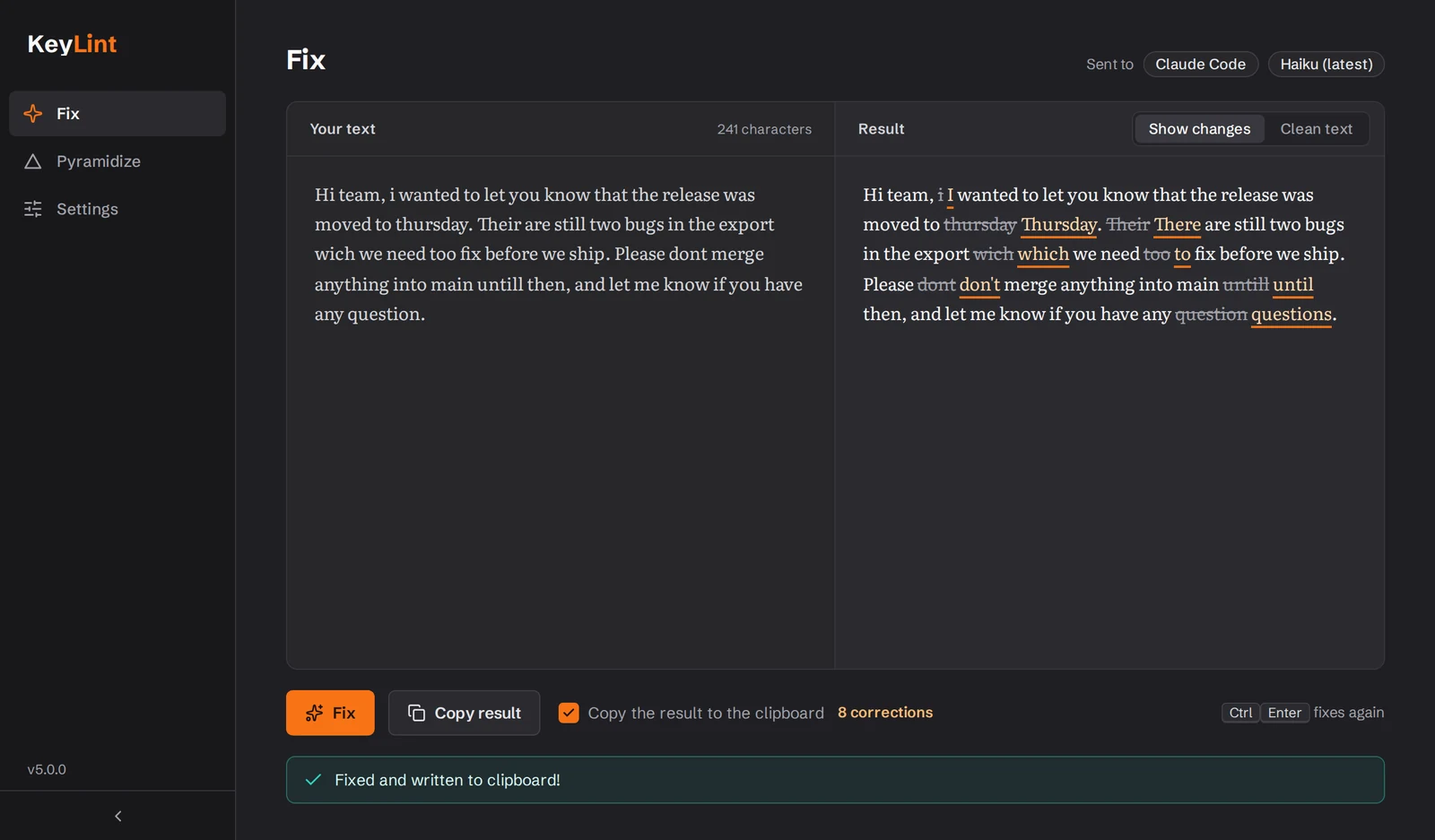
Want to check before you send? Paste the text into KeyLint's Fix page: the original on the left, the corrected text on the right with every change marked.
Text fixes that stay out of your way
Silent Fix
Select text in any app and press Ctrl+G. The corrected text replaces your selection — no window, no interruption, no copy-paste loop.
Pyramidize
Hold Ctrl and tap G twice to turn rough notes into a clear email, chat message, memo, wiki page or slide outline — main point first. You pick the form, add an instruction if you want one, then copy the result as rich text or send it back.
Bring your own AI
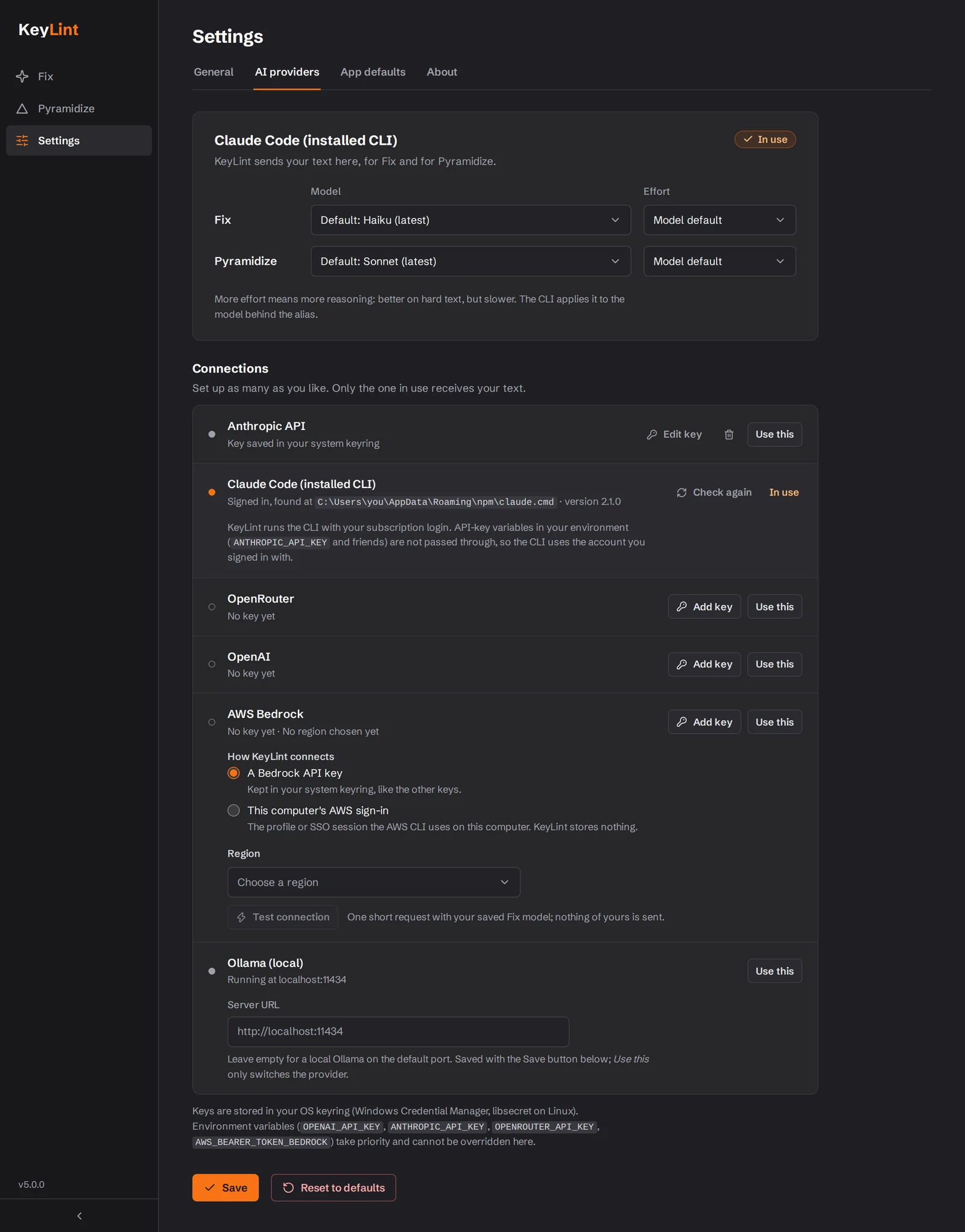
An Anthropic, OpenRouter or OpenAI API key, your own AWS account through Bedrock, a local model through Ollama — or the Claude Code CLI you're already signed in to, with no key at all. How that works
Multilingual
Writes in English? Fixed in English. German? Fixed in German. KeyLint detects the language and corrects without translating.
System Tray
Lives in your system tray. Single-click for the menu, double-click to open. Uses minimal resources.
Private
Your text goes from your PC straight to the provider you picked — no KeyLint server in between. No telemetry, no cloud sync, no clipboard history stored, and logging is off by default. Besides the providers you set up, KeyLint only contacts GitHub, to check for updates when it starts.
Use the AI you already have
An API key
Anthropic, OpenRouter or OpenAI: paste your key once. It is kept in your operating system's keyring and only ever sent to the provider it belongs to. One OpenRouter key reaches models from many vendors.
No key: the Claude Code CLI
Already signed in to Claude Code on this PC? Then you need no API key. KeyLint runs your installed claude command, unmodified, so usage counts against your own Claude account. KeyLint never reads, stores or forwards your credentials and never asks you to log in: you sign in to Claude Code in your own terminal.
Your AWS account: Bedrock
Claude models in your own AWS account, with a Bedrock API key or the AWS sign-in already on this PC, which KeyLint does not store. You choose whether your text stays in your region's geography or may be processed worldwide.
Local: Ollama
Run a model on your own machine with Ollama. With a local model, your text stays on your PC.
Claude Code is Anthropic's product. KeyLint is an independent project and is not affiliated with or endorsed by Anthropic, OpenRouter, OpenAI or Amazon Web Services.